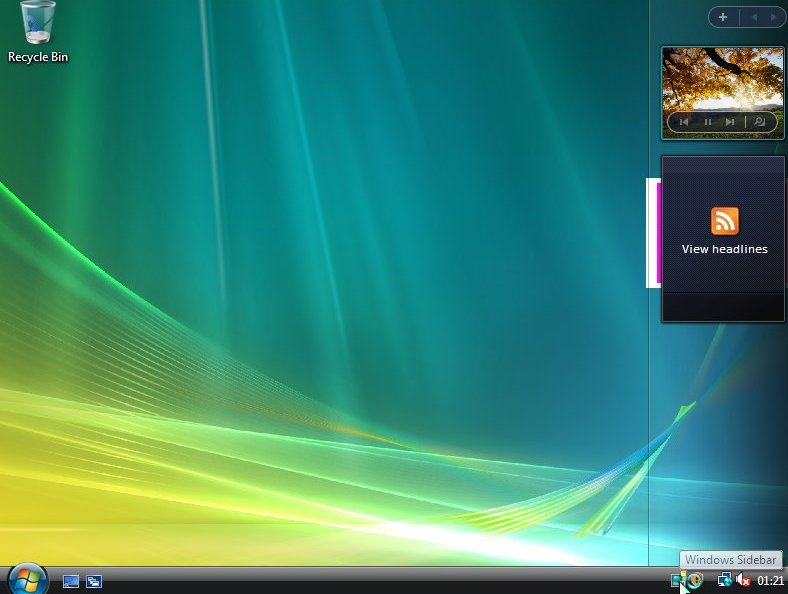
berikut langkah-langkah yang mudah dan lengkap cara menginstal windows vista :
1. Siapkan CD WINDOWS VISTA
2. Siapkan CD DRIVER MOTHERBOARD
3. Atur bios terlebih dahulu agar prioritas bootingnya dimulai dari CD(DVD)-ROM, caranya:
a. Masuk ke BIOS dengan menekan tombol Del, atau F1, atau juga F2.
Pilih menu Advanced Settings, kemudian carilah ‘Boot Priority’ atau yang sejenis.

b. ubah pengaturanya, agar CDROM jadi urutan yang pertama kemungkinan pilihan ini ada 2 jenis
* menu ‘First boot priority’, ‘Second boot priority’ dll: Aturlah ‘First boot priority’ ke ‘CDROM’ dengan menekan tombol PgDn/Pgup (Page Down/Up) atau +/-.
Atur juga ‘Second boot priority’nya ke HDD0/HDD1.
* Jika menunya ‘Boot priority’: atur ke ‘CDROM, C, A’ atau ‘CDROM, A,
C. dengan menekan tombol PgDn/Up.
gak usah di utak-atik biosnya. biarin aja bios diload masukin CD WINDOWSnya, lalu Restart komputer, trus tekan-tekan F8 atau F10 atau F11 (boleh dicoba satu-satu) nanti bakal muncul opsi boot selection. pilih aja yg ada 'bau' cd-nya. trus enter. selesai deh...ga pake repot-repot...

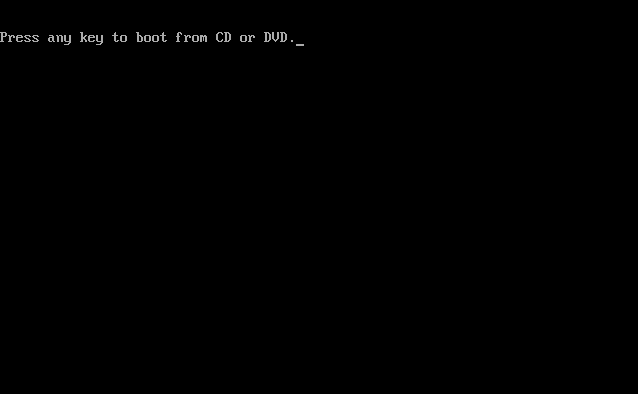
4. Tunggu beberapa saat sampai muncul tulisan "press any key to boot from CD" seperti tampilan Seperti gambar di bawah ini

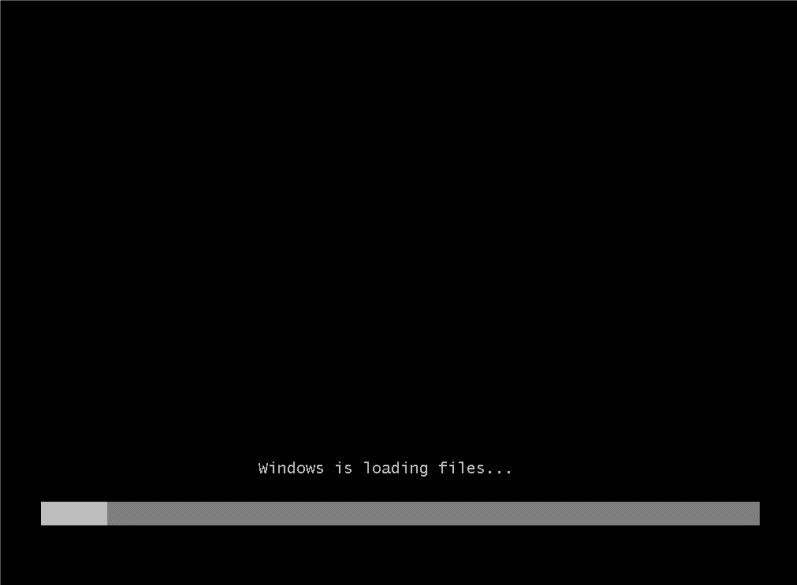
WINDOWS VISATA SEDANG MEMUAT FILE
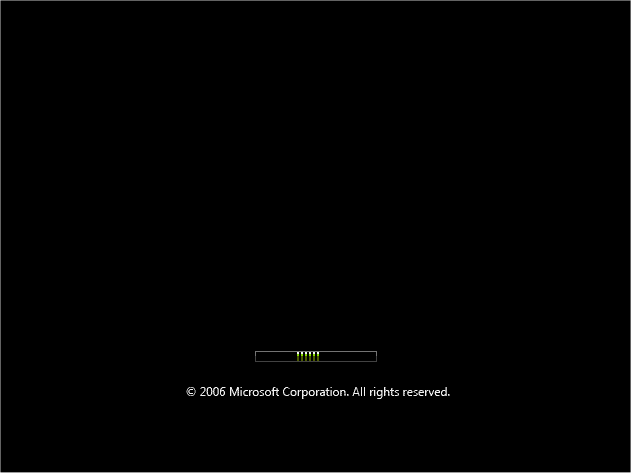
PILIH BAHASA
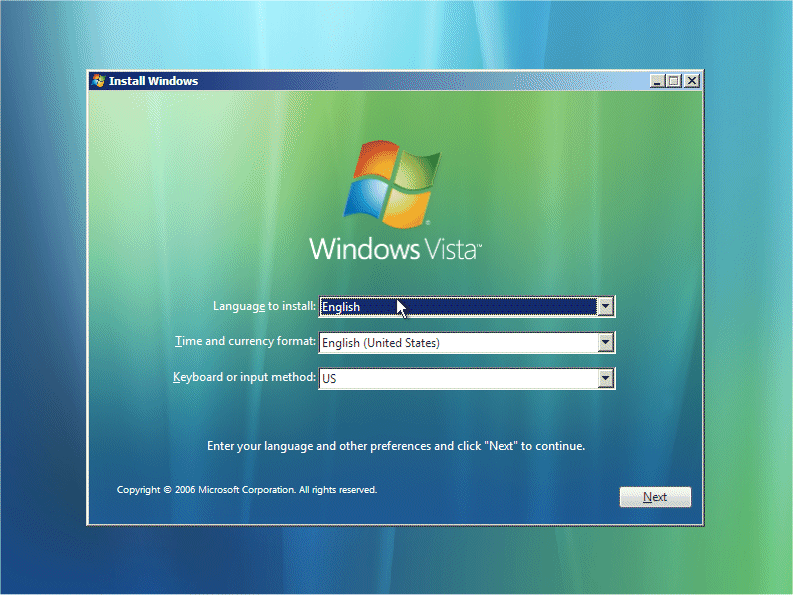
LALU TEKAN NEXT
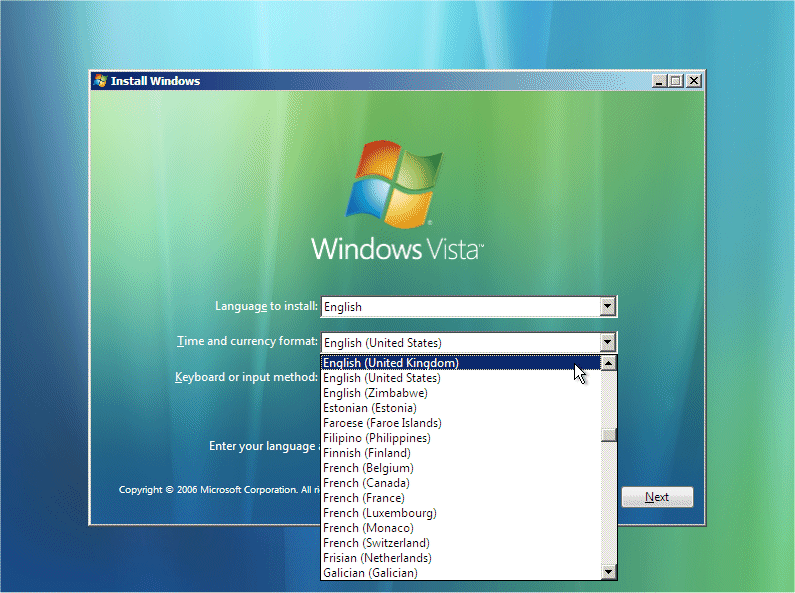
SETINGAN DI BUAT DEFAULT AJA DI ATAS CUMAN CONTOH! TEKAN NEXT
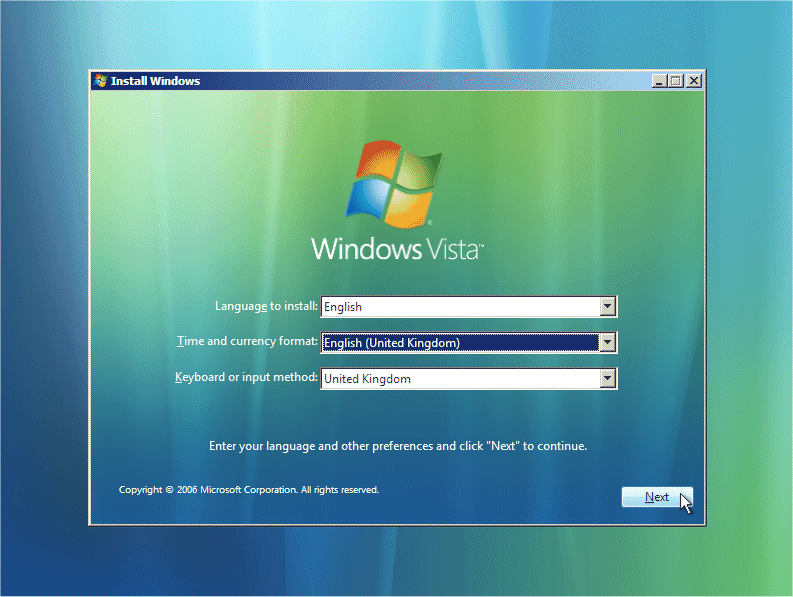
TEKAN NEXT TUK MELANJUTKAN MENGINSTAL
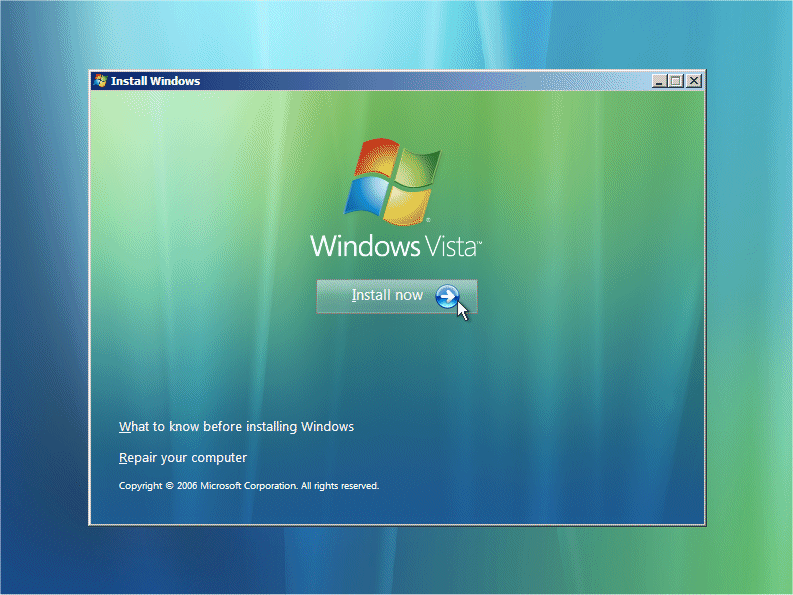
KLIK KIRI DENGAN MOUSE 1X PADA INSTAL NOW
| PART 2 |
This section is the collecting information part. First you will need your Windows “Product Key”. This will be on the disk packaging provided with your CD’s/DVD’s. The product key will be 25 digits long and will contain letters and numbers.

CEKLIST PADA AUTOMATCALLY ACTIVATE WINDOWS WHEN I’M ONLINE DIHILANGKAN LALU TEKAN NEXT DENGAN MOUSE

MASUKKAN PRODUC KEY
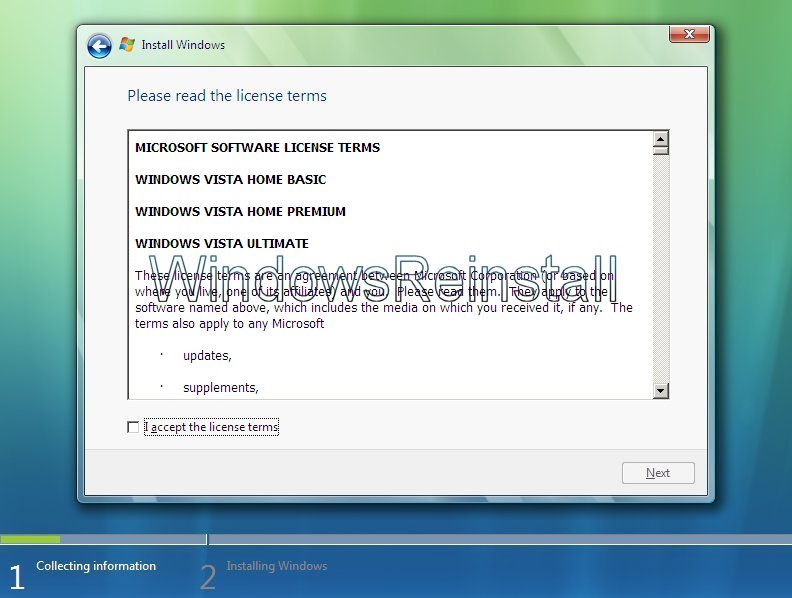
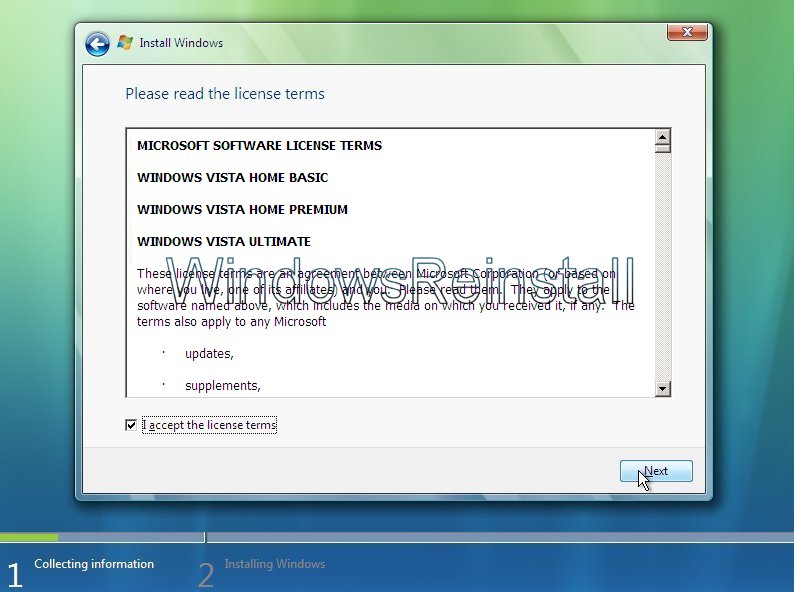
BERI CEKLIST DENGAN KLIK KIRI 1X DENGAN MOUSE DI I ACCEPT THE LINCES TERMS LALU KILIK NEXT
Now you will asked the type of installation you wish to do. Click on “Custom” to continue.
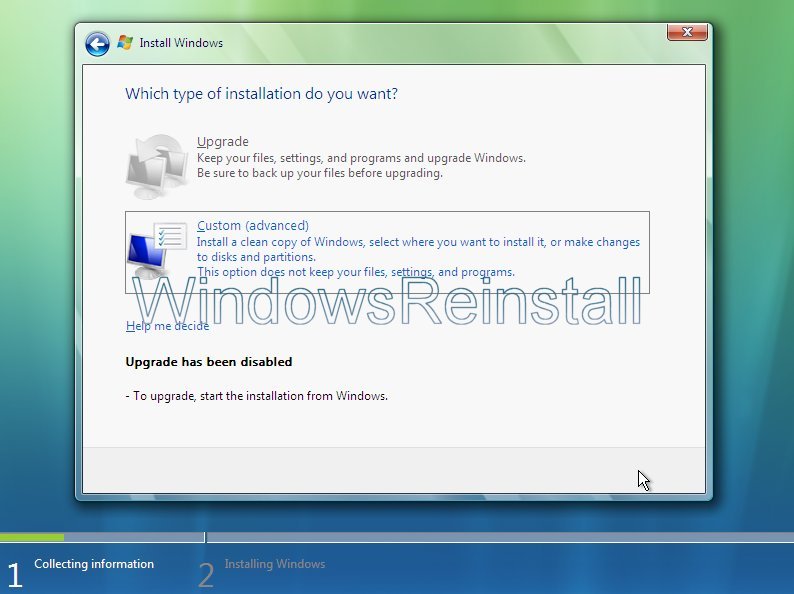
SETELAH TAMPIL GAMBAR DI ATAS PILIH COSTUM ADVANCED
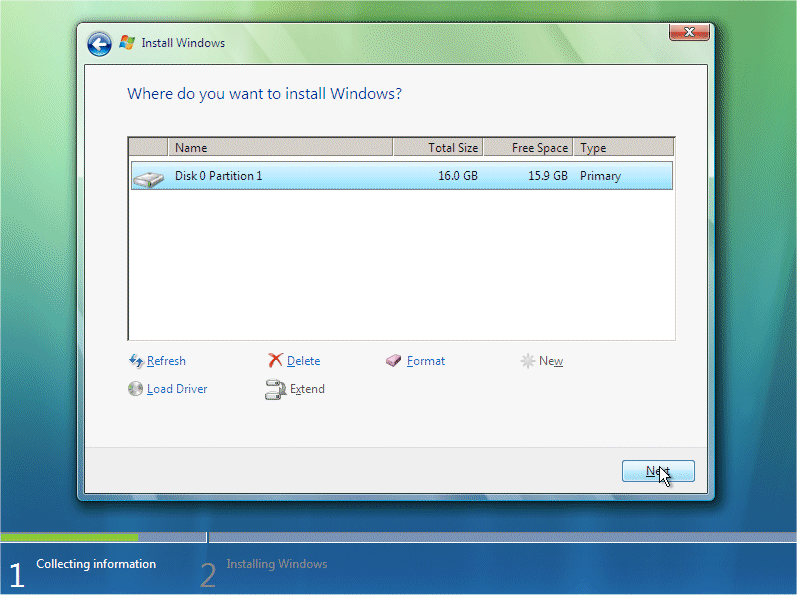
To setup the harddrive, click on “NEW”
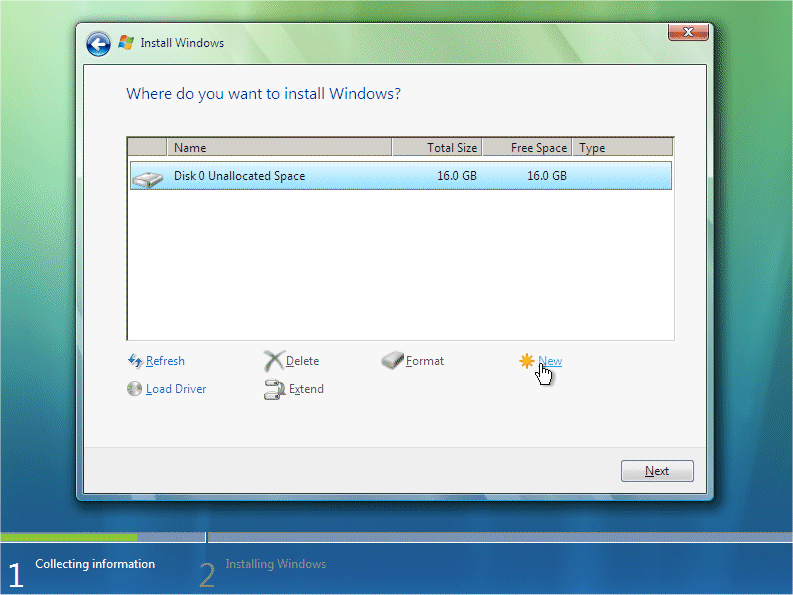
Select the amount of size you wish to use and click on “APPLY”.
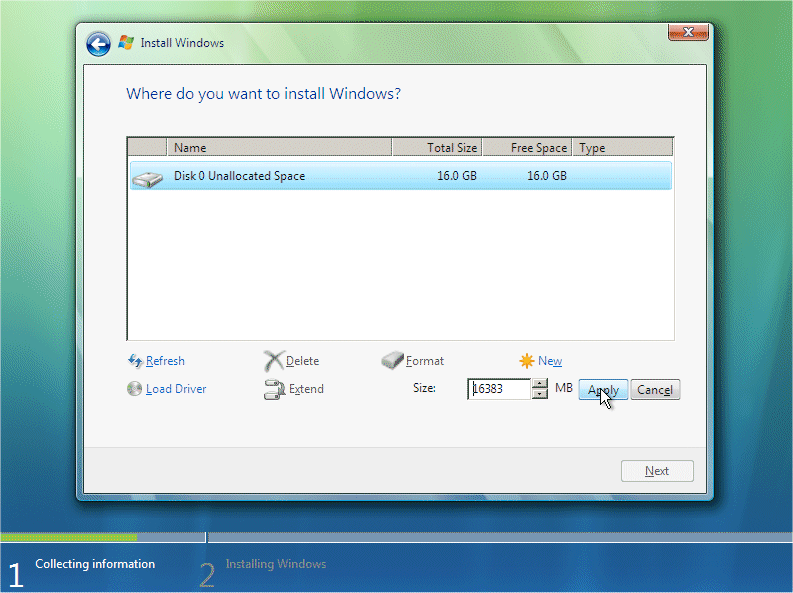
It will take a few moments to apply the settings.
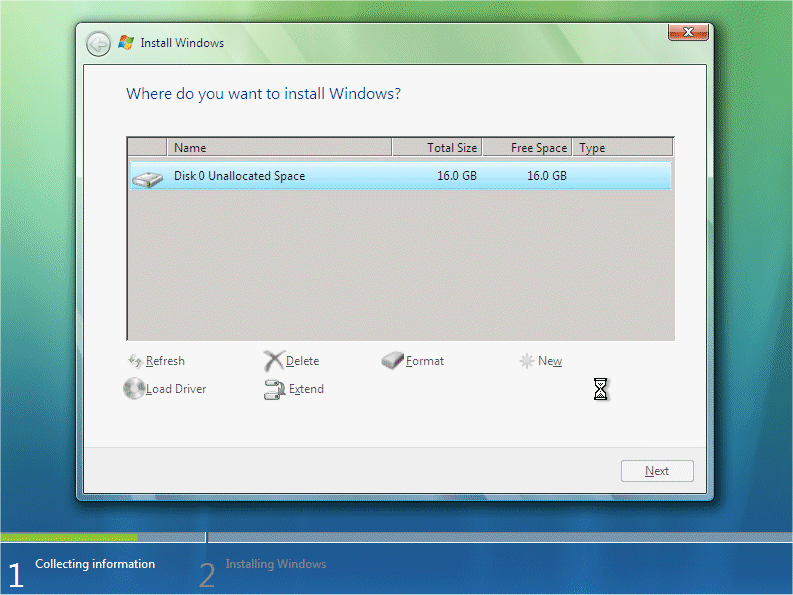
Once done, click on “FORMAT” to format the drive.
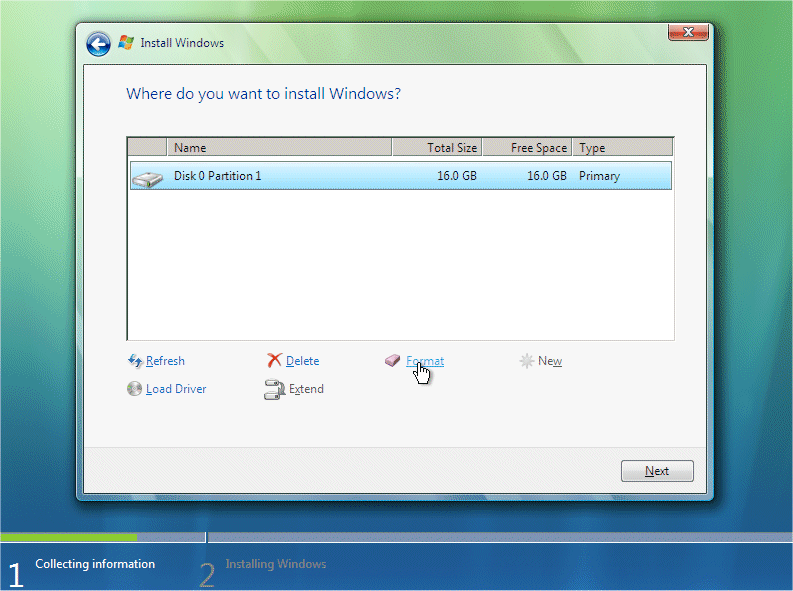
You will receive a warning, click “OK” to continue, as all info will be permanently deleted.

Windows is now formating the drive, this may take a few moments so be patient.
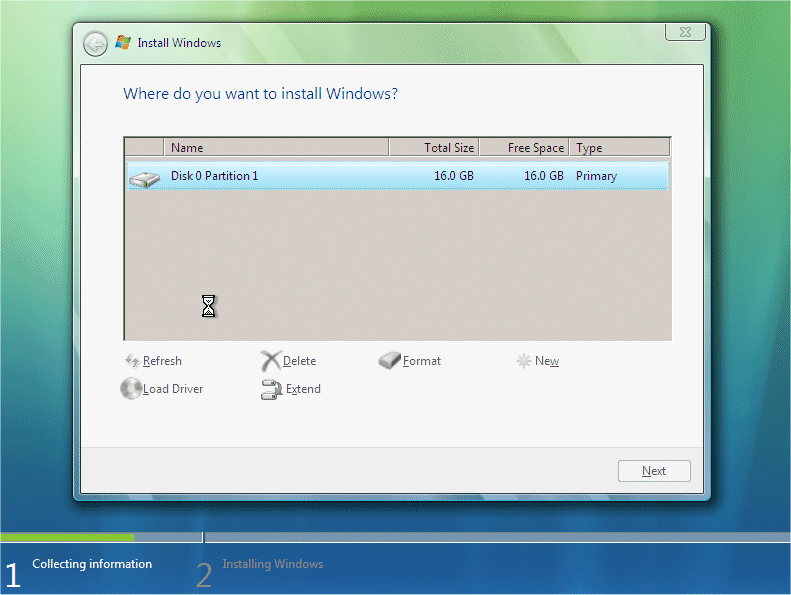
Once done click on “NEXT” to continue.

This section is for installing Windows, it will take sometime and does not require any input from you, so go make a cup of tea or watch TV as it may take up to an hour. Make sure there are no disks in your floppy drive, as the computer will reboot a few times during this process.
Windows now copies files:
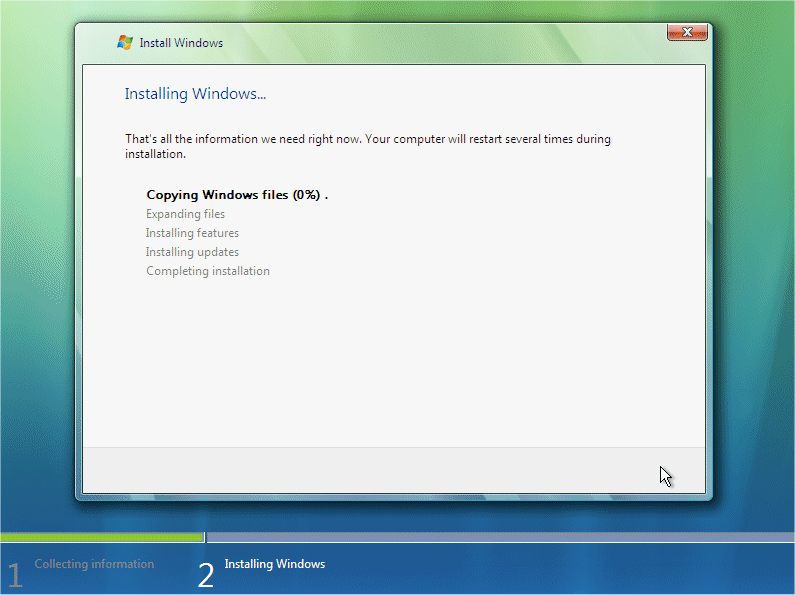
Windows expands the files:

Windows is installing features:
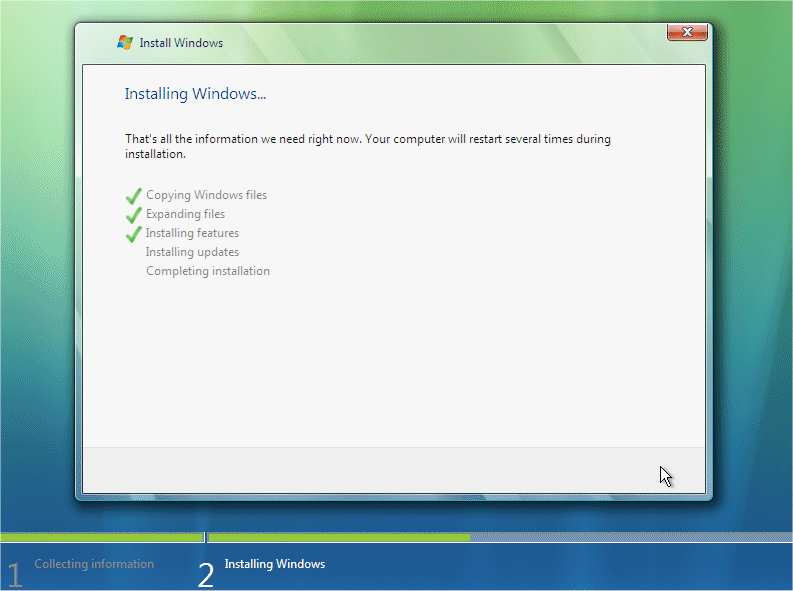
Windows is installing updates:
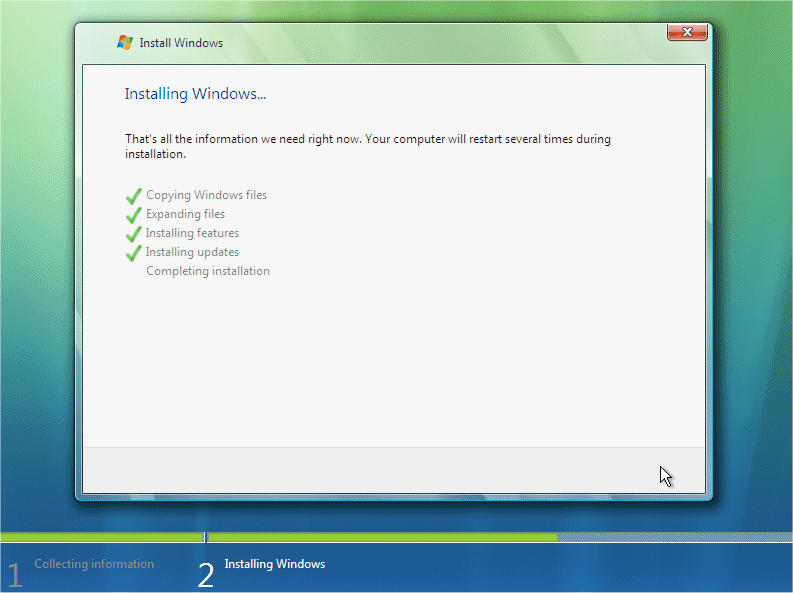
Windows is doing a restart: It will do this automatically if you are not about, otherwise you can click “Restart Now” to speedthings up slightly.
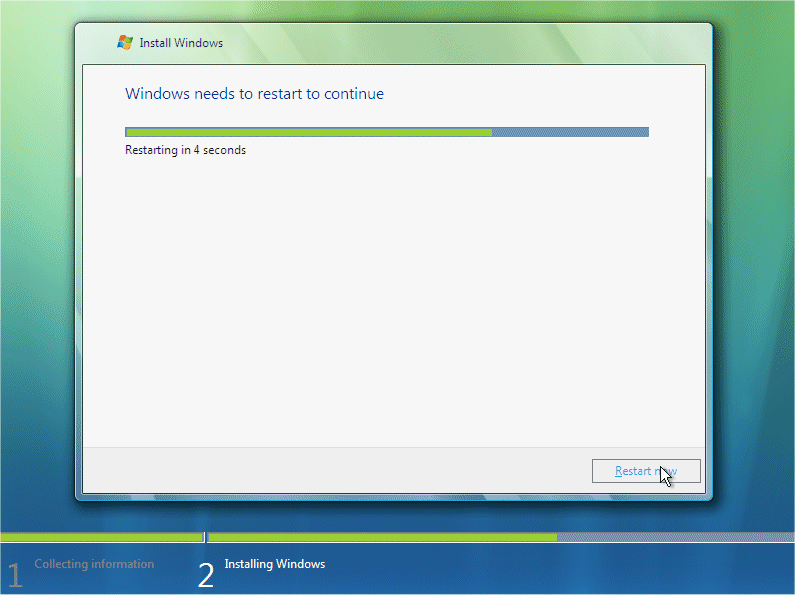
The computer reboots:

If you get this message then you have left the a floppy disk in the floppy drive or your harddrive is not in the BIOS boot sequence correctly. Remove disk or fix BIOS then press “Any Key” to continue.
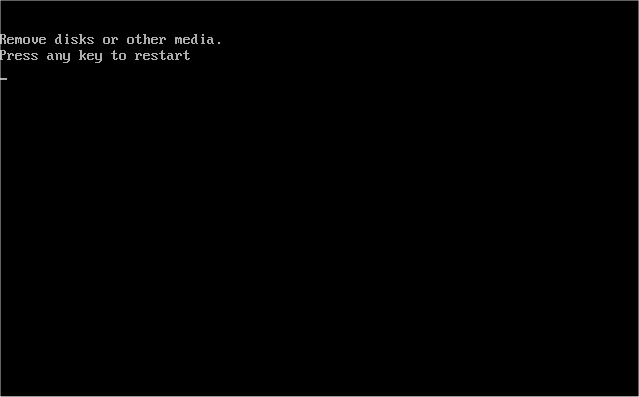
You may also get this message “Press any key to boot from CD or DVD..”, do not press and key and allow this to pass.
Windows continues Loading:
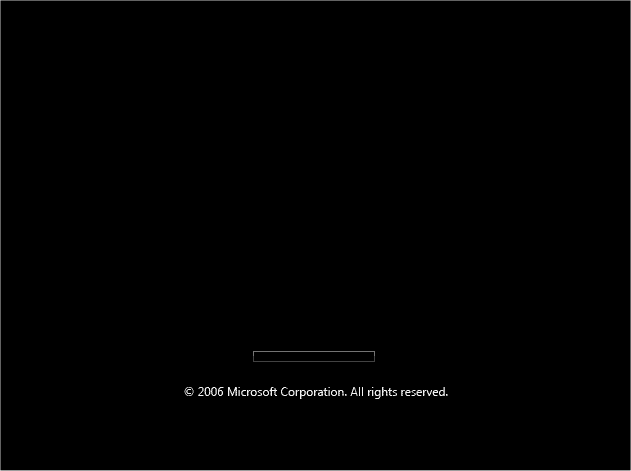
Windows is now booting for the first time, don’t be fooled there could still be a few reboots and quite a bit of installing to go.
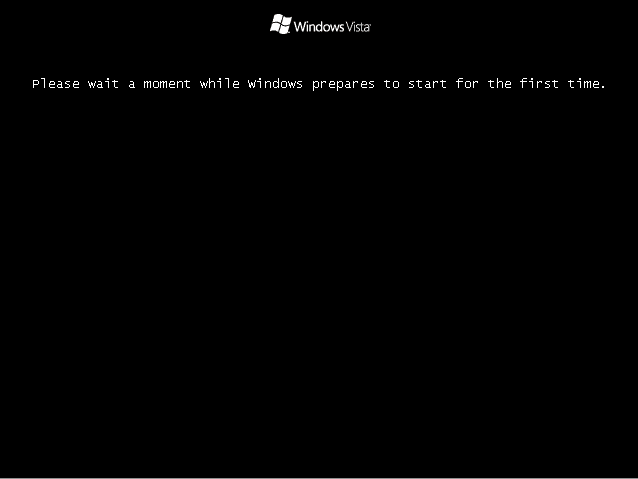
Windows continues to install:
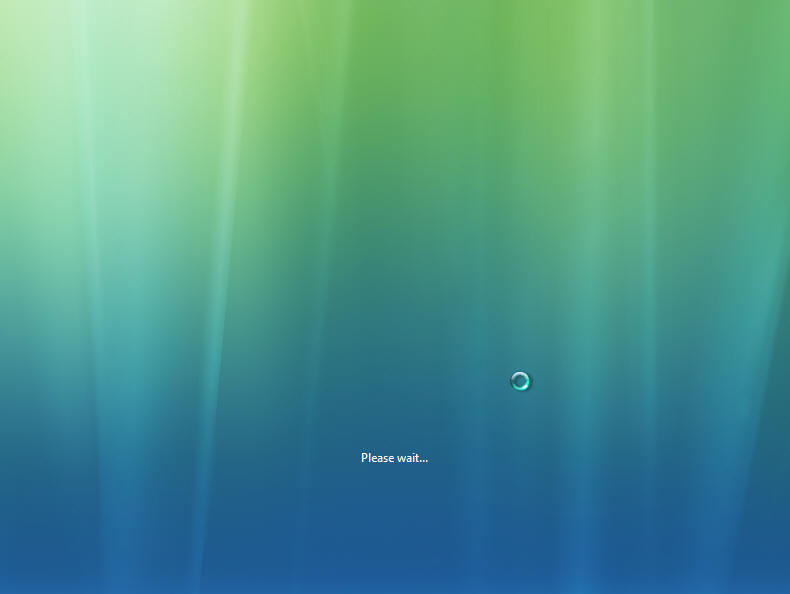
Windows does more updating and installing:
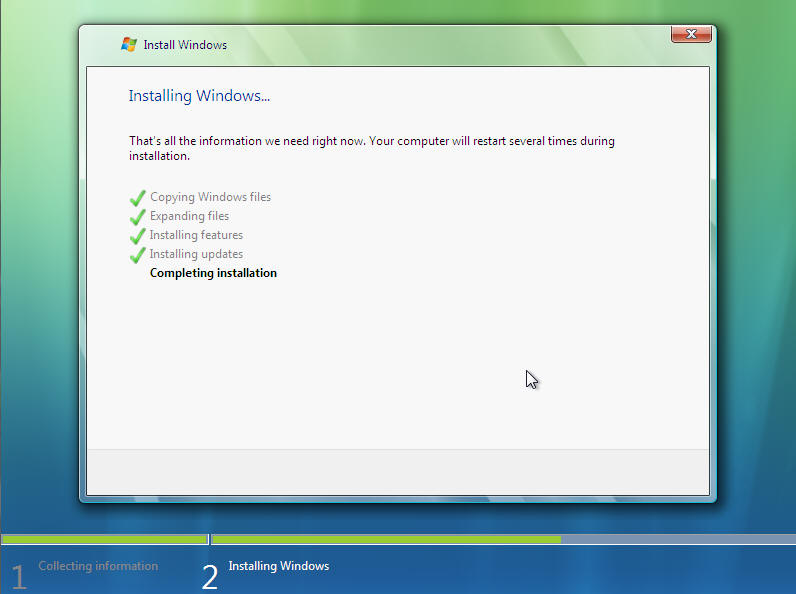
Windows reboots a few more times:
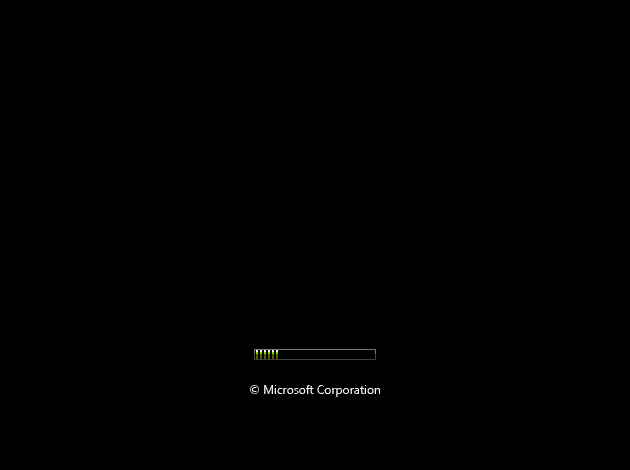
and then finally:

Something to do.
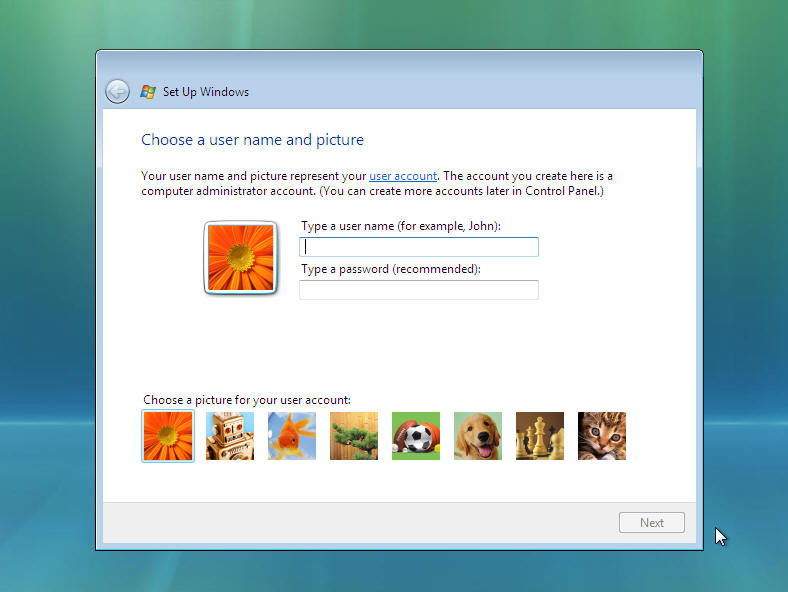
Next Input your Username for the computers Administrator account. Then Click on Password.
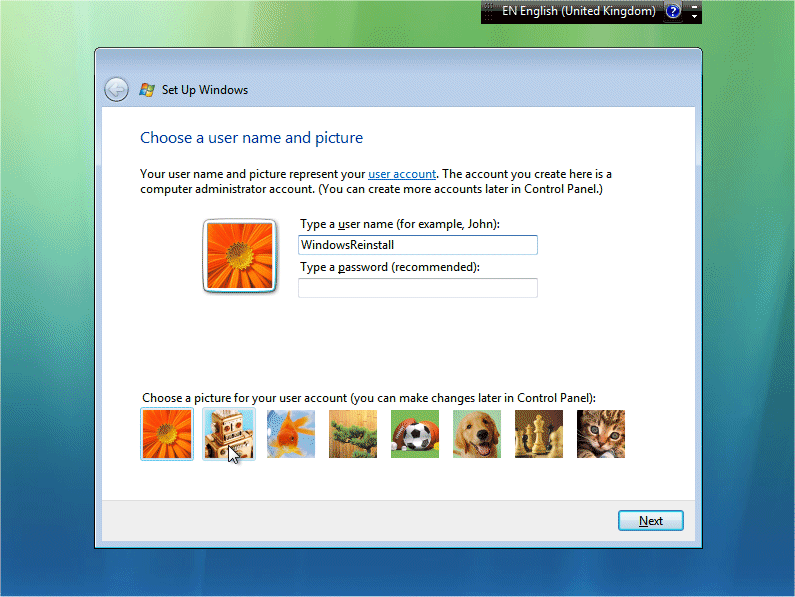
Now input your password (One you will remember) and then retype the password to confirm. Also type in a password hint that would help you remember it just in case. You may also change the default local login image by clicking on a different picture.
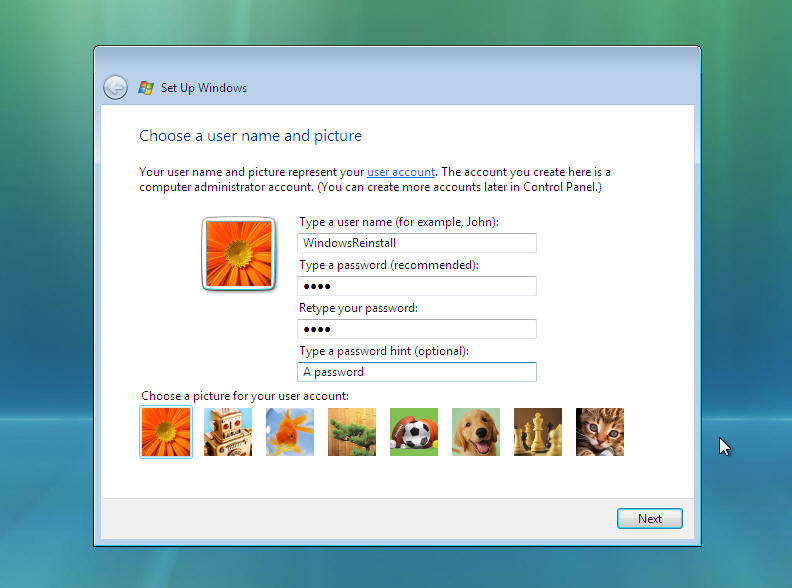
If you change the image it will change as per below. Once done click “NEXT” to continue.

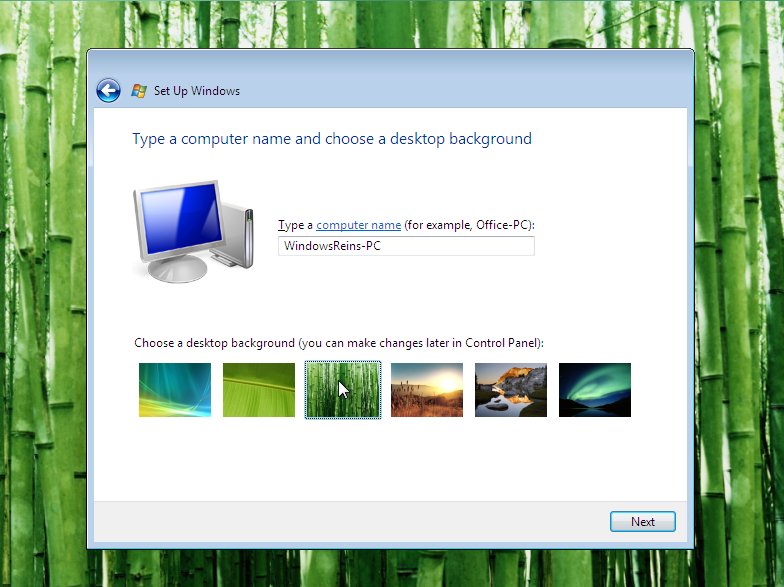
Now choose a computer name (Mainly used for ID on a network), and select a different background image if you wish.
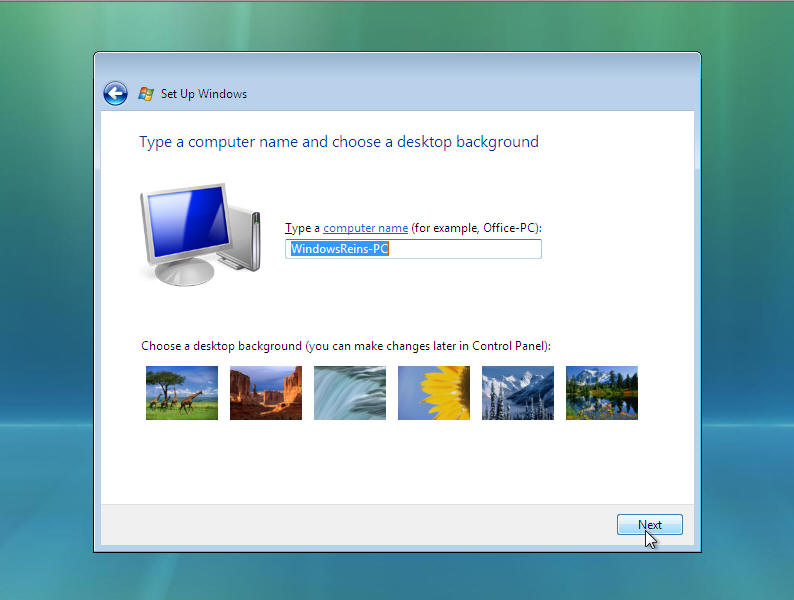
If you change the background it will change as per below. Click “NEXT” to continue.
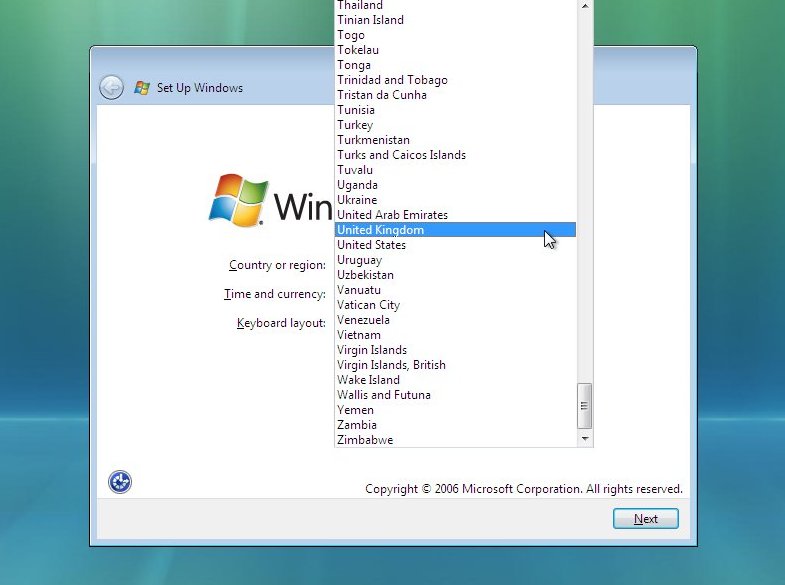
Next you need to check the time zone is correct and also the time and date. Time and date in from the BIOS, but “Time Zone” needs to be set, it will defaulted to the most common language location used by your default language as set earlier. Click the “Down arrow” at the end of the box.
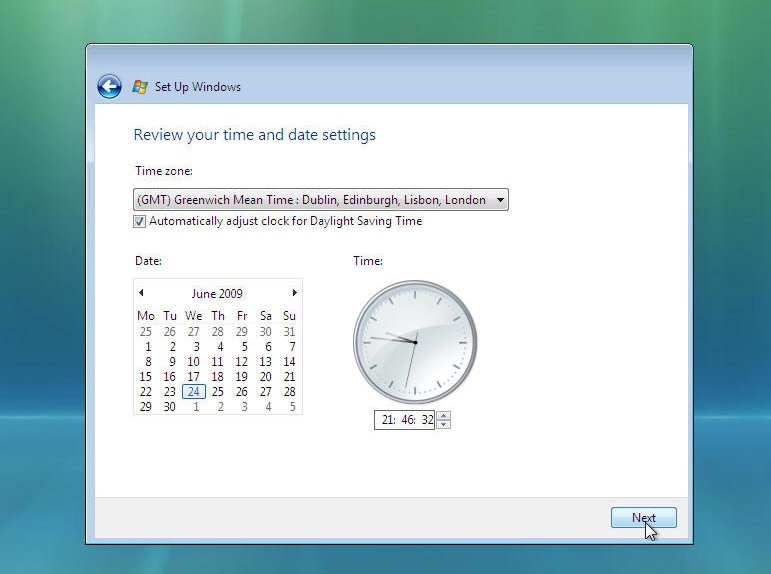
Now select your “Time Zone”. Once you are happy with your selection click on “NEXT” to continue
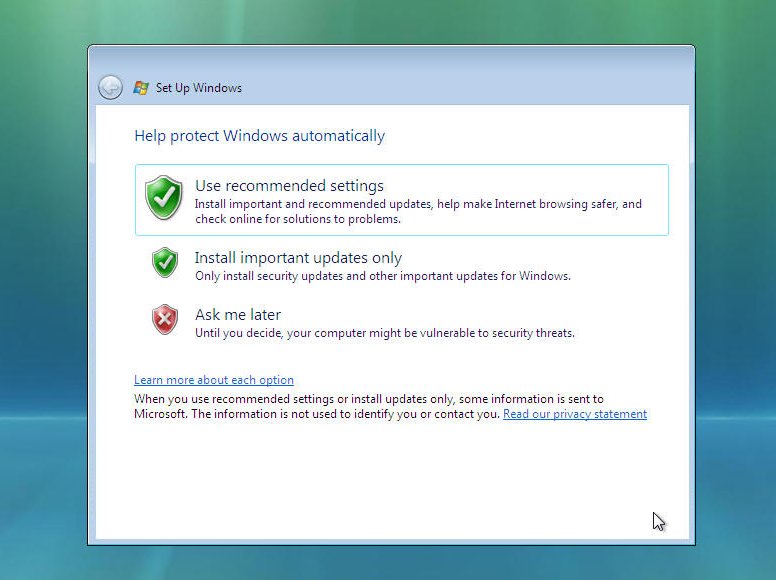
Now select your Windows protection method. We recommend the top option “Use Recommended settings”, click on your selection to continue.
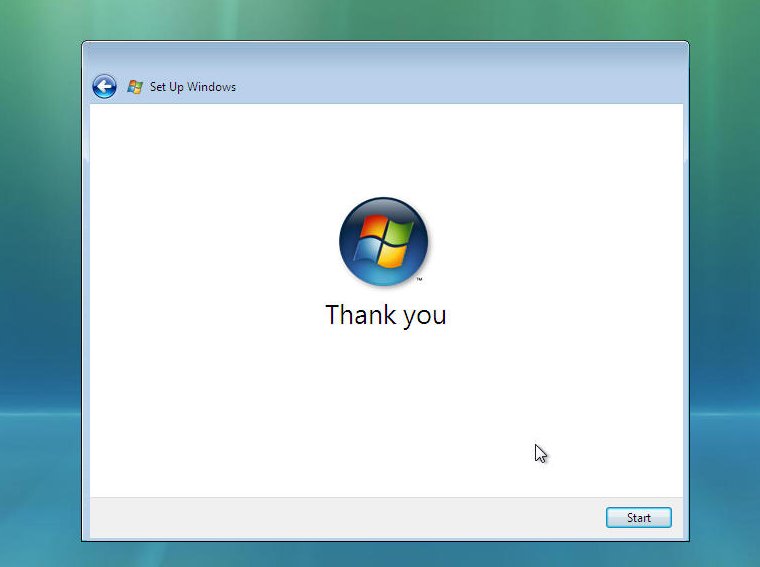
That is all the information gathered that is needed, Windows Install will thank you, click on “START” to continue….
and begin to load.
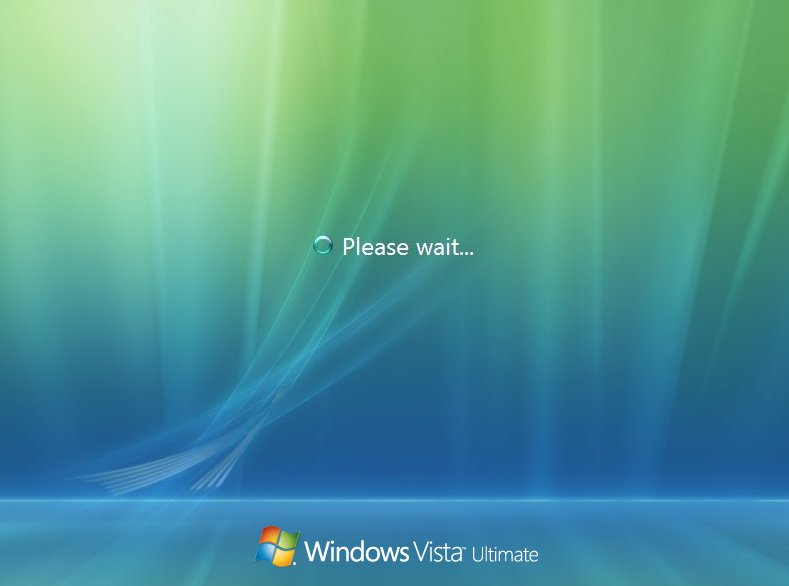
and load….Cara Menginstal Windows Vista (Lengkap Dengan Gambar)
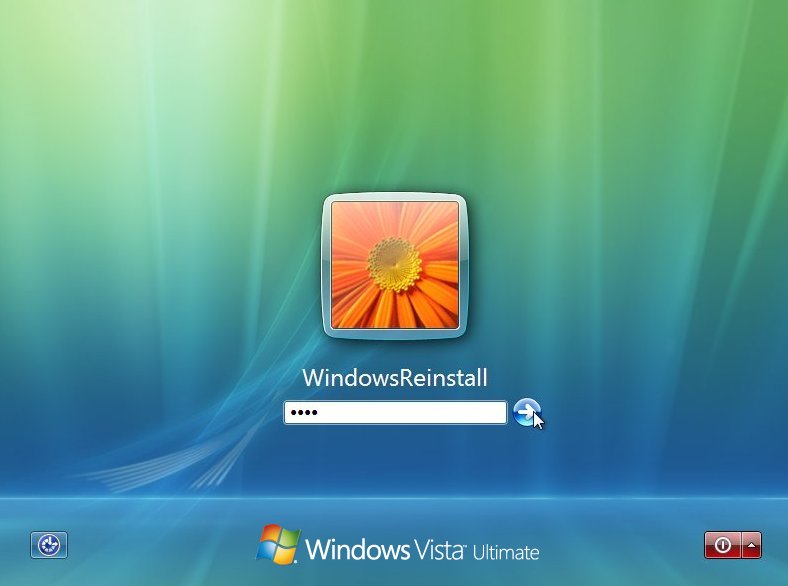
Now the Windows “LOGIN” screen. Type in your password and click on the arrow (Or press “ENTER”) to continue.Cara Menginstal Windows Vista (Lengkap Dengan Gambar)
Windows “WELCOMES” you…. Cara Menginstal Windows Vista (Lengkap Dengan Gambar)
Windows now “PREPARES THE DESKTOP”
Windows desktop appears and the stages of the install begin.
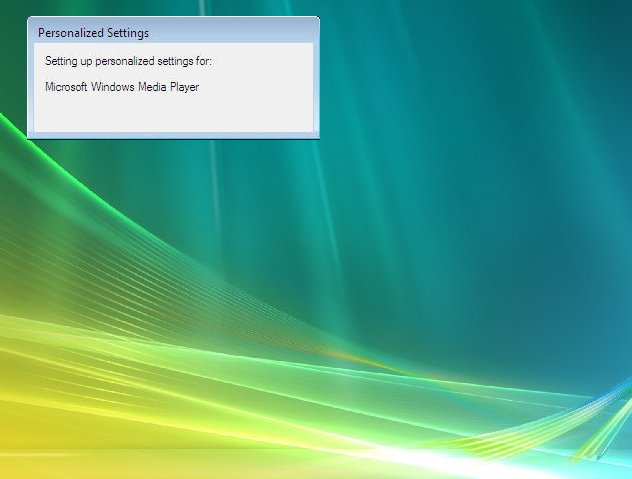
Several personalised settings will be installed.
The desktop will soon appear.